AWS CLI: Table Output

Earlier today I stumbled on an AWS CLI feature I hadn’t noticed before, the “output” flag.

The default value of this flag is json, which is probably what you want most of the time. It makes it pretty easy to manipulate and pull out the data you need.
But if you are just looking for a visualization of your command you have the option of specifying “text” or “table” in the command.
aws ec2 --output table describe-instances

Text will give you a flat dump of the information, while table will format it pretty with colors and blocks. I used the table command to find an instance I wanted to use in the screen shot below.

Keep in mind that table output adds a lot of extra characters, so it isn’t a great way to view large numbers of instances at the same time, but if you’re looking for readable output, this is handy.

I wouldn’t recommend it, but you can set this to be the default in your AWS credentials file at

C:\users\\.aws\credentials

It would look like

AWS Powershell Tools Snippets: CodeBuild Cloudwatch Logs

We’ve been using AWS CodeBuild to run java maven builds almost since it came out. It’s great when it works, but when Maven has a problem it can pretty pretty difficult to sift through logs in the Cloudwatch console.

Below is an AWS Powershell Tools snippet that will pull down a cloudwatch log stream and dump it both to your console and to a file. There are a few parameters you’ll need to set

  1. LogStreamName – this should be the specific log stream you want to download. Usually this correlates to a Codebuild run
  2. LogGroupName – this will be the /aws/codebuild/
  3. OutFile location – this is where you want the files dumped
Get-CWLLogEvents -logstreamname logstreamname -loggroupname /aws/codebuild/yourprojectname).events | foreach {$message = "$($_.TimeStamp) - $($_.Message)";write-host $message; $message | out-file logfilelocation.log -append}

This command can also be used to pull down other log streams as well, you just need to swap out the same variables.

Happy troubleshooting!

AWS Powershell Tools: Where’s the rest of the information?

If you haven’t noticed, I’m a proponent of using AWS Powershell tools for managing your AWS resources. There’s a bit of a learning curve if you’re not already familiar with Powershell or .NET, but Amazon has put a significant amount of time into developing the .NET class structure behind the Tools, which creates a pretty rich tool set.

However, for the novice user this can be a bit confusing. I recently did a post on finding where your AWS Codepipeline artifacts get stored, and demonstrated both a CLI method for using it, and a Powershell method.

The CLI method is pretty straightforward the command here:

dumps out a HUGE json blob with all of the information you could ever want about your Pipeline. Stages, name, pipeline ID, and artifactore are all right there.

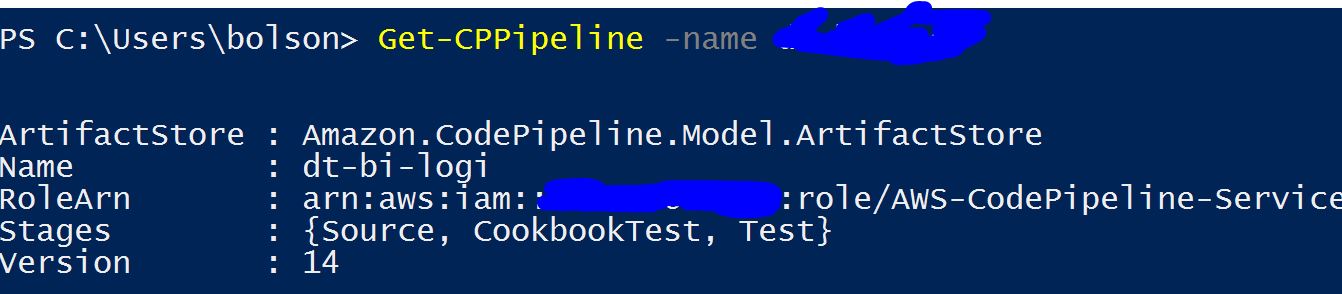
And you might expect the Powershell tools to be just as informative right away, but you’d be wrong. The equivalent command in powershell returns much less:

At first, I reacted the way you probably would: with frustration. Quite a bit of it! Where’s all the information I got out of the CLI?

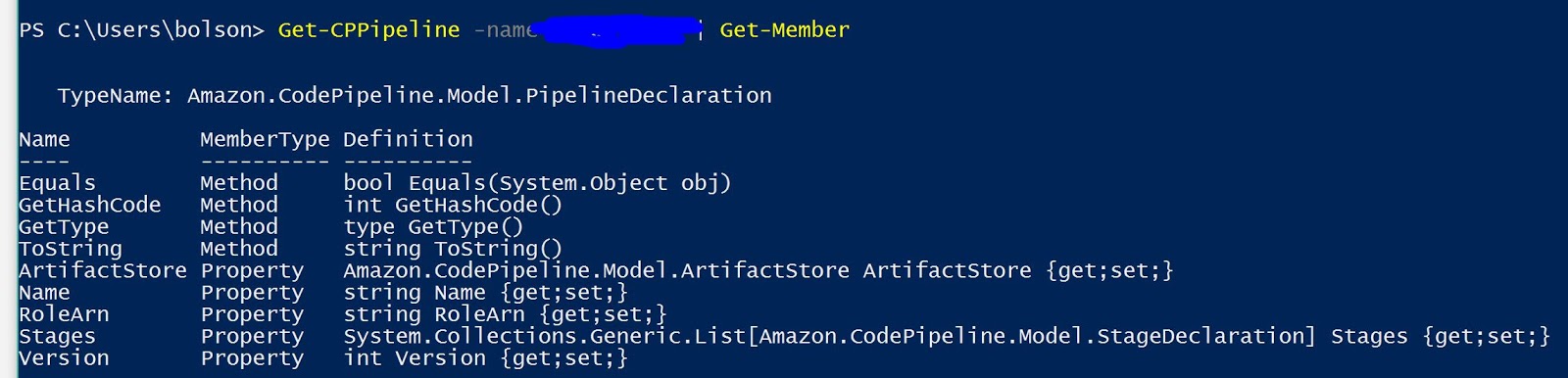
A handy dandy powershell command to know is “Get-Member” which returns the functions and properties of an object. Let’s give it a try on what’s returned from Codepipeline:

And there it is! There’s an “artifactstore” property, so with the simple:

(Get-CPPipeline -name ).artifactstore

I have the artifact store. But let’s zoom in a little on what “Get-Member” returned for me:

And now I can see that there is also a set method for this object! If I have the proper permissions I can set the artifact store as well as view it. Continued examination shows me other properties, including the name, have get and set attributes as well. Pretty handy!

Where are my Codepipeline artifacts?

AWS Codepipeline is a CICD service that lets automate running changes through a “pipeline” and performing different actions at different stages. Getting started with it through the GUI was relatively simple, but after a few months of using it I wondered what it was doing behind the scenes.

One question that kept bothering me was, “Where is it storing my artifacts?” Codepipeline can monitor a number of different sources for changes that need to be run through the pipeline such as CodeCommit, Github, and S3, but it isn’t obvious how it gets these changes somewhere it can start operating on.
As is often the case with AWS the CLI (or Powershell tools) are the easiest way to dig a little deeper. First, use the command
aws codepipeline list-pipelines
on the CLI to list pipelines or

Get-CPPipelineList

in powershell to list the Pipelines you have in that region. After that you can get more information about the Pipeline with

aws codepipeline get-pipeline --name 

or in Powershell

(Get-CPPipeline -name ).artifactstore

For the CLI you can find the JSON object “ArtifactStore”, or in powershell you can access the attribute directly. It turns out that Codepipeline creates an S3 bucket for you behind the scenes, and gives it a unique name. Your artifacts get stored here under a key that’s a truncated version of the Output artifact name, and a version guid.

AWS Serverless Application Model: Here we go!

AWS Serverless Application Model (SAM) was released a couple months ago. The punch line of this new release in my mind is the ability to version your lambda function code and your cloudformation template next to each other. The idea being to have completely packaged serverless application that deploy from a single repository.

I spent an afternoon playing around with AWS SAM, and I’m already a pretty big fan. It makes deploying lambda functions a lot easier, especially when you have different accounts you want to use them in.

The example below is to create a lambda function that tags EBS volumes as they become available

AWSTemplateFormatVersion: '2010-09-09'
Transform: AWS::Serverless-2016-10-31
Resources:
EbsVolumeAvailableTagger:
Type: AWS::Serverless::Function
Properties:
Handler: ebs_available_date_tagger.lambda_handler
Role: !GetAtt EbsCleanerIAMRole.Arn
Runtime: python2.7
IAMEbsVolumeListTagPolicy:
Type: "AWS::IAM::Policy"
DependsOn: EbsCleanerIAMRole
Properties:
PolicyName: !Sub "Role=EBSCleaner,Env=${AccountParameter},Service=Lambda,Rights=RW"
PolicyDocument:
Version: "2012-10-17"
Statement:
-
Effect: "Allow"
Action:
- "ec2:CreateTags"
- "ec2:DeleteTags"
- "ec2:DescribeTags"
- "ec2:DescribeVolumeAttribute"
- "ec2:DescribeVolumeStatus"
- "ec2:DescribeVolumes"
Resource:
- "*"
Roles:
- !Ref EbsCleanerIAMRole
EbsCleanerIAMRole:
Type: "AWS::IAM::Role"
Properties:
RoleName: !Sub "Role=EbsCleaner,Env=${AccountParameter},Service=Lambda"
AssumeRolePolicyDocument:
Version: "2012-10-17"
Statement:
-
Effect: "Allow"
Principal:
Service:
- "lambda.amazonaws.com"
Action:
- "sts:AssumeRole"
Path: "/"
Parameters:
AccountParameter:
Type: String
Default: NoPHI
AllowedValues:
- Prod
- Staging
- Corporate
Description: Enter the account where this lambda function is being created. Will
be used to properly name the created IAM role

And then the python that it runs

import boto3
import re
import logging
import time

def lambda_handler(event, context):

# Number of days to wait before deleting a volume

volumeDaysOld = 30

# Get a cloudwatch logger
logger = logging.getLogger('EbsVolumeCleanup')
logger.setLevel(logging.DEBUG)

# Obtain boto3 resources
logger.info('Getting boto 3 resources')
opsworksClient = boto3.client('opsworks')
ec2Client = boto3.client('ec2')

availableVolumes = ec2Client.describe_volumes(Filters=[{'Name':'status','Values':['available']}])

availableVolumesToTag = []

for volume in availableVolumes['Volumes']:
logger.info(volume)
if 'Tags' in volume:
tags = volume['Tags']
availableDate = (tag for tag in tags if tag['Key'] == 'volumeAvailableDate').next()
if availableDate:
logger.info('Volume was available' + availableDate['Value'])
else:
logger.info('Volume not yet tagged')
availableVolumesToTag.append(volume['VolumeId'])
else:
availableVolumesToTag.append(volume['VolumeId'])

logger.info('Volumes to be tagged available: ' + "-" + str(len(availableVolumesToTag)) + " " + "|".join(availableVolumesToTag))
if availableVolumesToTag:
ec2Client.create_tags(Resources=availableVolumesToTag,Tags=[{'Key':'volumeAvailableDate','Value':time.strftime("%d/%m/%Y")}])

return 0

If you put the two of these into a directory together, you can use the aws cloudformation package and deploy CLI commands to push them to your account.

aws cloudformation package --template-file ec2-management-cft.yml --output-template-file instance-management-cft-staging.yml --s3-bucket cft-deployment-bucket --s3-prefix "lambda/ec2-management

aws cloudformation deploy --template-file instance-management-cft-sandbox.yml --stack-name Sandbox-InstanceManagement --capabilities CAPABILITY_NAMED_IAM --parameter-overrides AccountParameter=Staging

Those commands will package your lambda function, inserting the correct CodeUri property.

Getting an AWS IAM Certificate ARN

I was recently working on a cloudformation template that needed an ELB with an HTTPS listener. My company already has a wildcard cert uploaded to IAM for use in staging environments, so I wanted to use that cert rather than create a new one.

The classic load balancer and the newer Application Load Balancer look a little different for creating HTTPS listeners, but both require you to include the certificate ARN in your template.

I spent some time poking around in the console, looking for how to find the ARN of a certificate you’ve uploaded with no success. As far as I can tell, there’s no where besides editing an ELB listener to see the certificates that you’ve uploaded.

Finally I turned to the AWS CLI and found “get-server-certificate” which returns the ARN of a certificate uploaded to IAM.

If you already have the AWS CLI setup with your secret keys, it’s pretty straightforward

aws iam get-server-certificate --server-certificate-name wildcard-****

And it will kick back the relevant data

As it turns out, the ARN of a certificate is just the combination of your account number and the name you gave it.

And lastly, because I insist on believing that lots of people use Powershell for AWS management when maybe none of you do, here’s the same command in good ol’ PS.

(Get-IAMServerCertificate -servercertificatename wildcard-***********).ServerCertificateMetadata

Interestingly, the powershell tools have a few different objects built in so you won’t get the metadata by default.

Using Multiple Accounts with AWS Powershell Tools

At my company we chose to separate our AWS resources into two accounts, one for production data and one for redacted data. This makes sense from a security standpoint, but it also makes it a little trickier for users who want to use a package like the AWS Powershell tools. Constantly copying your secret keys is a big waste of time, and I found it a little confusing how to save different sets of access keys into powershell.

This had been frustrating me for a while, so I finally took an hour to read the documentation and examples more carefully to understand how to setup multiple AWS accounts in the Powershell tools. I found this a little confusing so I figured I would write up an example for others.

Start with grabbing an access key and secret key pair from the Amazon console (mine not shown here for obvious reasons).

Then install the AWS powershell tools and open a powershell window.

Start by saving your credentials using the “-storeas” flag in powershell.

Note if you look in the help doc for this commandlet, adding this flag prevents the commandlet from updating the current credentials in the powershell session

To do that, you have to call the same commandlet and set the “-profilename” flag to the value you just entered in “-storeas”

Then rinse and repeat for other accounts that you want saved. At this point you can flip between accounts much more easily.

Using git bash on windows with AWS CodeCommit

I’ve started using AWS CodeCommit for some projects and so far I’m a fan. It’s a very simple web interface on top of git, so it doesn’t have any code review or issue tracking features, but if what you’re looking for is a private git repository for very cheap, CodeCommit might be right for you.

The only configuration you need for CodeCommit is the name of the repository. Once you’ve created that, AWS will present you with the URL to clone your repo.

They also give you some instructions to tell git that it should use your AWS secret keys as the authentication profile, but I had some trouble getting their instructions to work with git bash.

If you’re a windows user like myself you’re probably used to converting instructions for Linux into the Windows world. In this case it wasn’t too bad. Amazon also provided a blog post that gave some further information.

Instead of using the commands their provided, I found my gitconfig file in C:\Program Files\Git\mingw64\etc (default location) and added the block they described

And that was all it took! From there I could use git normally.

I chose to setup git over HTTP, but I imagine a similar process would work for the actual git protocol.

Chef Cookbooks in CodeBuild

AWS usually releases a large number of new services at re:Invent, and this year was no exception.

The announcement I was most excited about was AWS CodeBuild, which is exactly what it sounds like: a service designed to take servers out of your build process.
One of the problems we looked tackling first is “building” chef recipes. If you’re a chef user, you know that recipes don’t need to be build so much as critiqued using foodcritic and packaged or deployed.
The first step is to put together a buildspec.yml file (apparently AWS has drunk the yml coolaid) that tells CodeBuild how to download and run your build tools. If you’re build can fit into one of the AWS supported docker images it makes this process a little easier because the tools will be built in.
If you need a different tool set it’s a good idea to build your own docker image so that your build environment is consistent, but for getting started quick you can also download and install custom tools in the Install step, as I’ve done in the example below.

https://gist.github.com/LenOtuye/df99701518fbf19dfaa331405d45fb0f.js

This example will run foodcritic, and if it passes zip your recipes and send them to wherever was specified in your code build project.

From there you can point an Opsworks stack at them to have them run on your servers.

I’ve been using CodeBuild for about a week, and the build has been taking about a minute and a half on average on the smallest instance size. That brings my cost per build to about a cent. Obviously this will vary based on what you’re building, but it makes it worth taking a look at.

Lambda Logging to Cloudwatch

If you’re an AWS user, either professionally or personally, I can’t encourage you enough to try it out. Lambda is the ability to run code in a few different languages (currently Python, Node, and Java) without worrying about the server environment it runs on.
Unfortunately (or fortunately, depending on your perspective) as with any new technology or paradigm, there are caveats to Lambda.
For example, one problem we’ve solved with Lambda is monitoring web services endpoints. Lambda allows us to make an HTTP call to a web service using the python httplib. But because the python script is being run on a server we don’t control or configure, it isn’t configured to point to our DNS servers by default. You can imagine our initial confusion when the lambda function said the web service was unavailable, but we never saw any traffic to the service.
The best way we found to gain insight into what lambda is actually doing is by logging from Lambda to a cloudwatch log stream. This allows you to output logs and put retention policies on them. Amazon has been helpful enough to tie the built in python logger into Cloudwatch. All you really have to do is to create a logging object similar to the example below

Below is an example

https://gist.github.com/LenOtuye/a7c14d8753d8268ab6b53c6a15535a70.js

Your logs will then be dumped into a log stream that is named “/aws/lambda/”

One thing to note is that from my experience you can’t control the name of the log stream. Even if you create the logger with “logger = logging.getLogger(‘LogName’)” the logstream will be named after the Lambda function.

To give your Lambda function permissions to log to Cloudwatch it will need to run under a role that has permissions. The IAM role should allow Lambda resources to run under it, for example

https://gist.github.com/LenOtuye/6e3216e129592b59327d1af9751ee1ee.jsAnd then you will need to give it permissions similar to the following (plus whatever rights your lambda function needs for it’s actual work) https://gist.github.com/LenOtuye/7bbf8922a547f937862055bb74791188.js